Dave the Diver save file location on macOS — and how to edit it
Two paths are in use on Mac, depending on how your copy was installed. Here's both of them, how to actually reach the hidden folder they live in, what the files are called, how to back one up, and the one Steam setting that silently throws your changes away.
The short answer
On macOS, Dave the Diver stores its saves in one of these two folders:
~/Library/Application Support/com.nexon.dave/SteamSData/<steam-id>/~/Library/Application Support/nexon/DAVE THE DIVER/SteamSData/
The save files inside are named GameSave_XX_GD.sav, where XX is the
slot number. ~/Library is hidden by default — open it with
Finder ▸ Go ▸ Go to Folder… (⇧⌘G), paste the
path, press Return.
Both macOS save paths
There is no single answer, and this trips people up: different installs of the Steam macOS build write to different places. Check both.
Path 1 — bundle-identifier folder (most common)
~/Library/Application Support/com.nexon.dave/SteamSData/<steam-id>/
<steam-id> is your numeric Steam account ID — a long run of digits, e.g.
76561198000000000. If you're signed into more than one Steam account on the same
Mac, you'll see more than one of these folders, one per account. The one you want is the one
with the most recent modification date.
Path 2 — publisher/product folder
~/Library/Application Support/nexon/DAVE THE DIVER/SteamSData/
Note the spaces and the capitalisation — the folder really is called DAVE THE DIVER
in caps. There's no per-account subfolder in this layout; the .sav files sit
directly in SteamSData.
A note on the leading ~: it's shorthand for your home folder, so the full path is
really /Users/yourname/Library/Application Support/…. This is the
user Library inside your home folder — not the /Library
at the root of the disk, which is a different folder entirely and does not contain game saves.
How to open the hidden ~/Library folder
Apple hides ~/Library from Finder by default, which is why so many guides just print
a path and leave you stuck. Four ways in, easiest first:
-
Go to Folder (fastest). In Finder, choose Go ▸ Go to Folder… from the menu bar, or press ⇧⌘G. Paste one of the paths above and press Return. Finder autocompletes as you type, which doubles as a check that the folder exists.
-
Hold Option in the Go menu. Click Go in the menu bar, then hold ⌥ (Option). Library appears in the list while the key is held.
-
Unhide it permanently. Open your home folder in Finder (⇧⌘H), press ⌘J for View Options, and tick Show Library Folder. It stays visible from then on.
-
From Terminal. If you'd rather not click:
open ~/Library/Application\ Support/com.nexon.dave/SteamSData/
open ~/Library/Application\ Support/nexon/DAVE\ THE\ DIVER/SteamSData/
The backslashes escape the spaces. Whichever path exists will open in Finder; the other will report “No such file or directory”, which is itself a useful answer.
Tip: once you're there, drag the SteamSData folder into the Finder sidebar. You'll
be back.
What GameSave_XX_GD.sav means
Inside SteamSData you'll find files named like GameSave_00_GD.sav,
GameSave_01_GD.sav, and so on. The two digits are the save slot. If you only ever
played one run, you'll likely see just one — plus whatever bookkeeping files the game keeps
alongside it.
| What you see | What it is |
|---|---|
GameSave_00_GD.sav | Save slot 0 — the actual game data. |
GameSave_01_GD.sav | Save slot 1, and so on for further slots. |
A folder of digits, e.g. 76561198… | Your Steam account ID, in the Path 1 layout. |
The .sav file is not plain text and not human-readable — opening it in TextEdit
shows binary noise, and saving it from a text editor will corrupt it. It has to be decoded to be
edited meaningfully, which is exactly what a save editor does.
How to back up your save manually
Do this before you change anything, even if the tool you use makes its own backups. It takes ten seconds.
Quit Dave the Diver completely — not just the window; quit the app so it isn't mid-write.
Open the save folder using one of the methods above.
Select the
.savfiles and press ⌘D to duplicate them, or ⌘C then paste them somewhere outside the folder — your Desktop, a Documents subfolder, an external drive.-
Or, from Terminal, stamp a dated copy of the whole folder:
cp -R ~/Library/Application\ Support/com.nexon.dave/SteamSData \
      ~/Desktop/DaveTheDiver-save-backup-$(date +%Y%m%d)
To restore later, quit the game and copy the backed-up .sav file back over the one
in SteamSData, keeping the exact same file name.
⚠️ Steam Cloud will silently undo your edits
This is the single most common reason an edit “doesn't work”, and it has nothing to do with the editor. When Steam launches, it notices your local save differs from the cloud copy and restores the old cloud version over your edit before the game even loads. Your change was written correctly; Steam simply replaced it.
Do it in this order:
Quit Dave the Diver completely. A good editor refuses to write while the game is running — mid-write saves are how files get corrupted.
Turn off Steam Cloud for this game. Steam Library → right-click Dave the Diver → Properties → General → uncheck Keep game saves in the Steam Cloud.
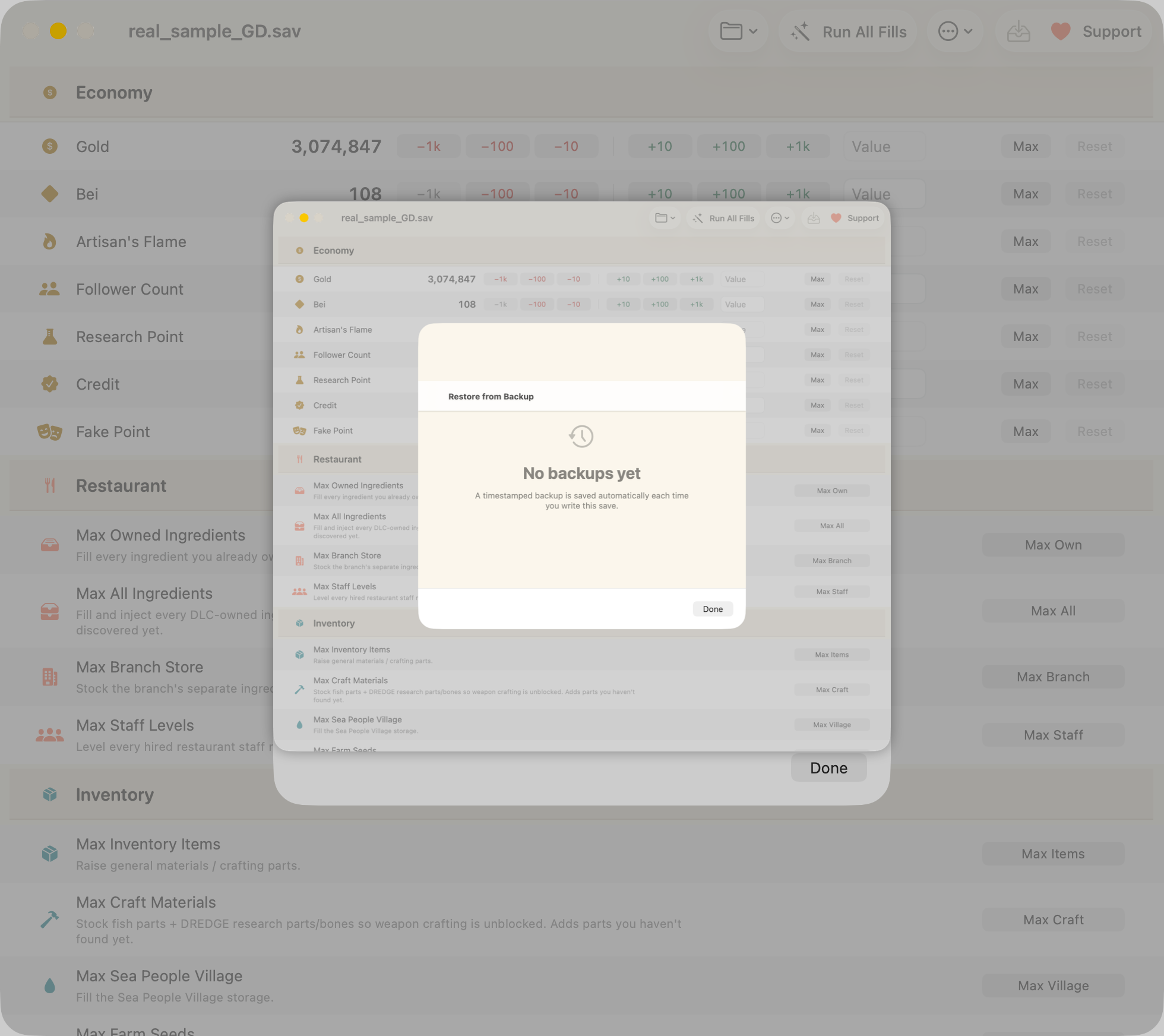
Edit and save. A timestamped backup is written first, automatically.
Launch the game. Your edit is now the version that loads.
How to actually edit the save on a Mac
Finding the file is the easy half. The .sav is encoded, so a text editor is not an
option, and the popular Windows editors need Wine, CrossOver, or a VM to run on macOS at all.
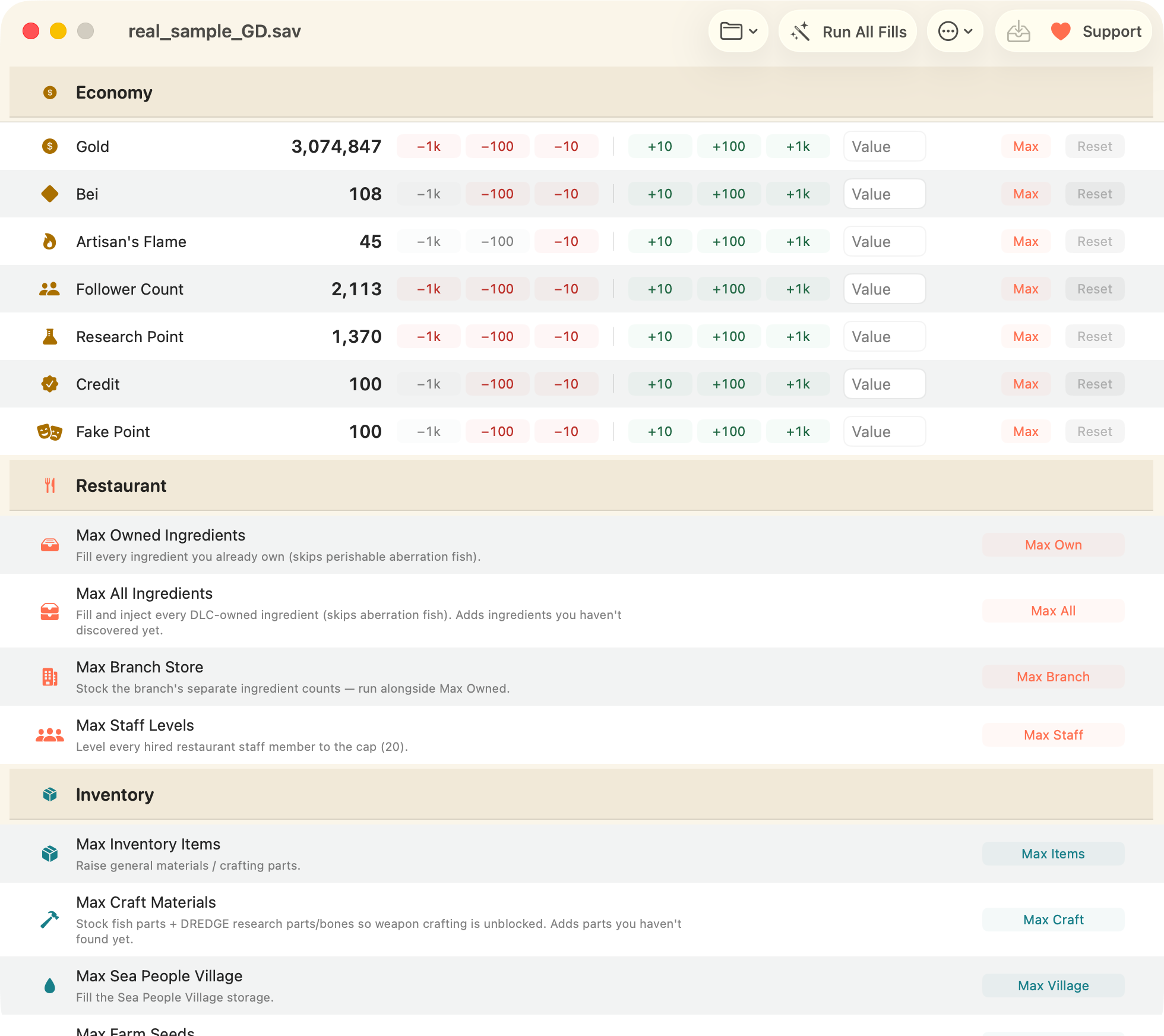
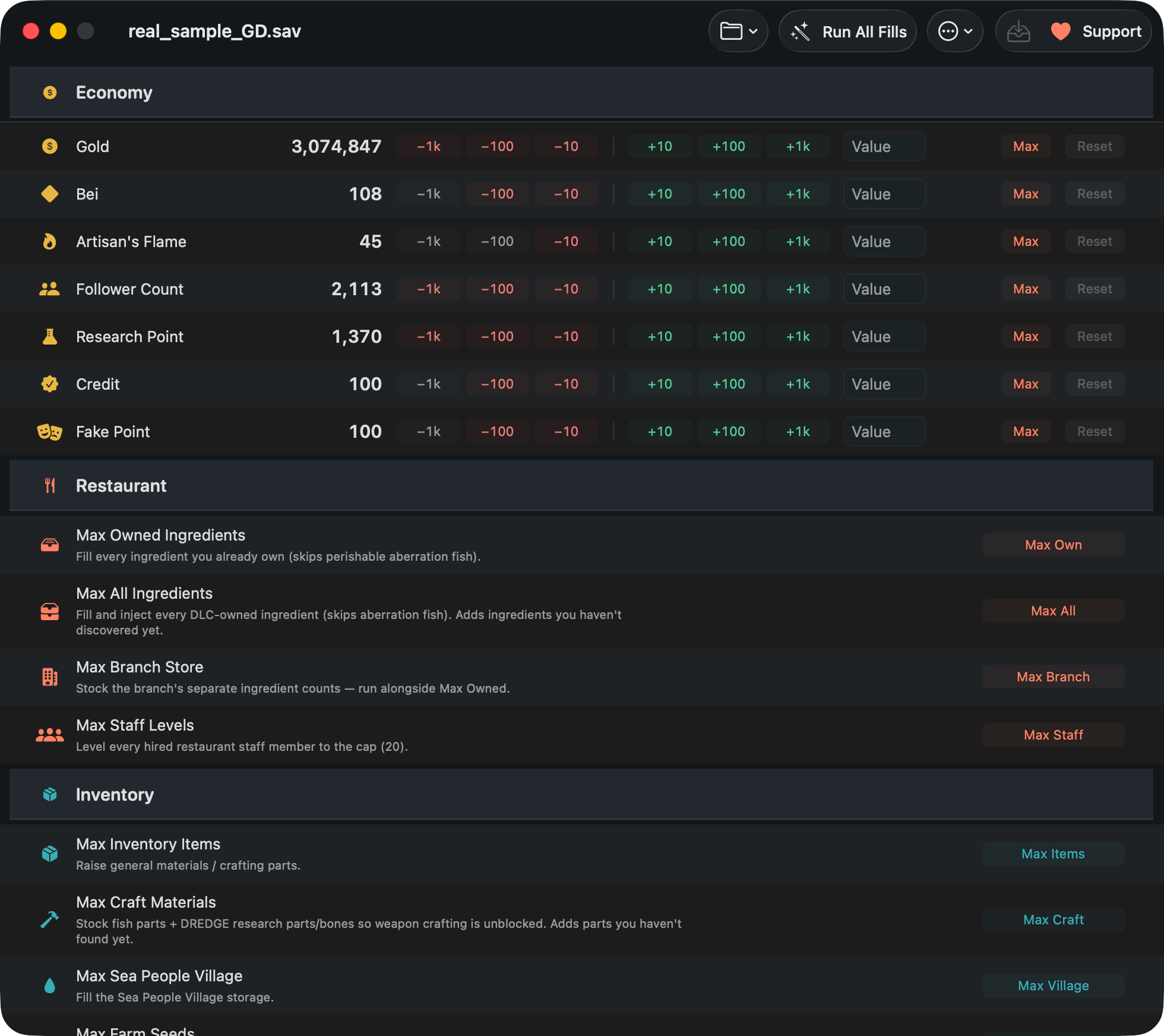
DiveSaveEd is a free, open-source, native Mac app built for exactly this: it finds both save paths on its own, lists every slot, and lets you edit currencies (Gold, Bei, Artisan's Flame, Research Point, Cooksta followers, Trust and Fake points), bulk-fill restaurant ingredients and inventory, or change any single item by name. Every bulk action is undoable in-app, every write is backed up first, and there's a read-only raw JSON inspector if you just want to look.
Download DiveSaveEd — free Read the source
macOS 14+, Apple Silicon and Intel. Signed and notarized by Apple. MIT licensed.
Nintendo Switch and PlayStation saves
Switch and PlayStation saves cannot be edited this way. Console saves live in
the console's own encrypted storage, never appear in
~/Library/Application Support, and are not the same file format. Copying a Switch
save to a Mac requires custom firmware or homebrew on the console itself — that is a different
problem with different risks, and nothing on this page applies to it. The paths above are
specific to the Steam version on macOS.
The Xbox / Microsoft Store version is also out of scope: it isn't available for Mac at all, and it stores saves in a different Windows-side format.
If you can't find the folder
- You looked in the wrong Library. It must be
~/Library— the one inside your home folder — not/Libraryat the top level of the disk. - You've never launched the game. The folder is created on first run. Start the game once, get to a save, quit, then look again.
- “Application Support” is localised in your Finder. macOS displays that folder under a translated name in some languages, but the real path on disk is always the English
Application Support— paste the English path into Go to Folder and it will work. - You have the other layout. If Path 1 doesn't exist, try Path 2, and vice versa.
- Still nothing? Search the whole Library from Terminal:
That prints the full path to every Dave the Diver save on your Mac, whichever layout it uses.find ~/Library/Application\ Support -name "GameSave_*_GD.sav" 2>/dev/null
Related
-
Max Gold, Bei & Artisan's Flame
What each currency is for, how to set it exactly, and how to undo it.
-
Cheat Engine alternative for Mac
Why Cheat Engine doesn't run on macOS, and what a save editor does instead.
-
FAQ
Bans, disappearing edits, Intel Macs, non-English saves, DLC and undo.